Create a booking in the web panel
Add a booking for an existing client, a new client or a walk-in.
The form has four steps: client, service, time and confirmation.
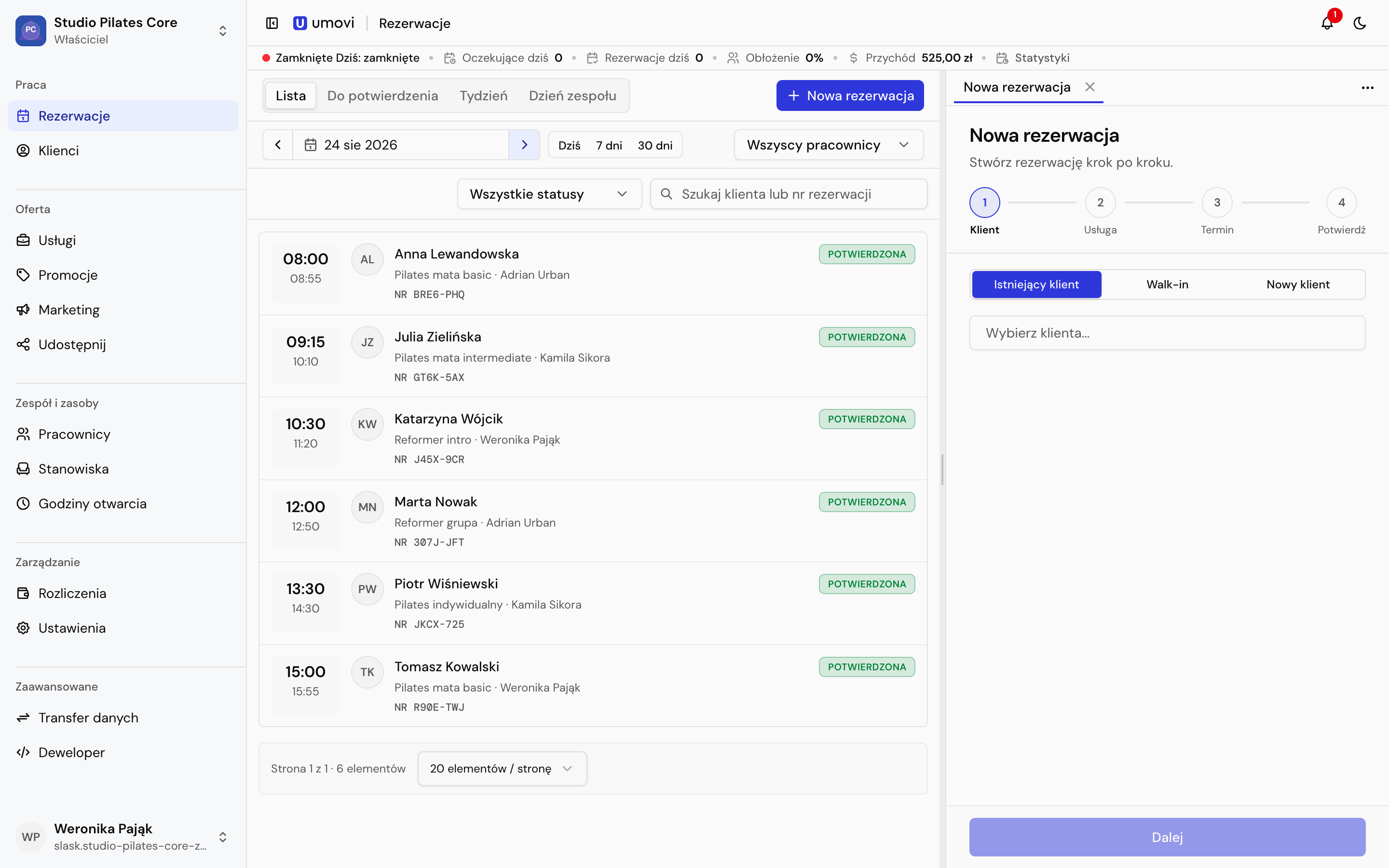
1. Client
Choose:
- Existing client — search for a client profile.
- Walk-in — a booking without an assigned person; you can assign a client later.
- New client — enter their details and confirm that they may be used to manage the booking.
2. Service
Choose an active service. The panel shows its duration, price and category. Check employee assignments through categories or individual services. You cannot continue without an employee who performs the service. The team can use active internal services for manual bookings.
3. Employee and time
- Choose an employee or Any available employee.
- Select a day with available times.
- Choose a time.
Automatic assignment selects someone who performs the service and is free. Availability takes place hours, employee schedules, exceptions and required workstations into account.
4. Confirmation
Check the client, service, employee, time and price. Put team-only information in the Internal note; the client will not see it. Select Book. Umovi checks availability again before saving.
Mobile equivalent: Create a booking in the app.