Data transfer in the web panel
Import clients and bookings, prepare CSV exports and review task history.
Owners and managers can access Import, Export and History.
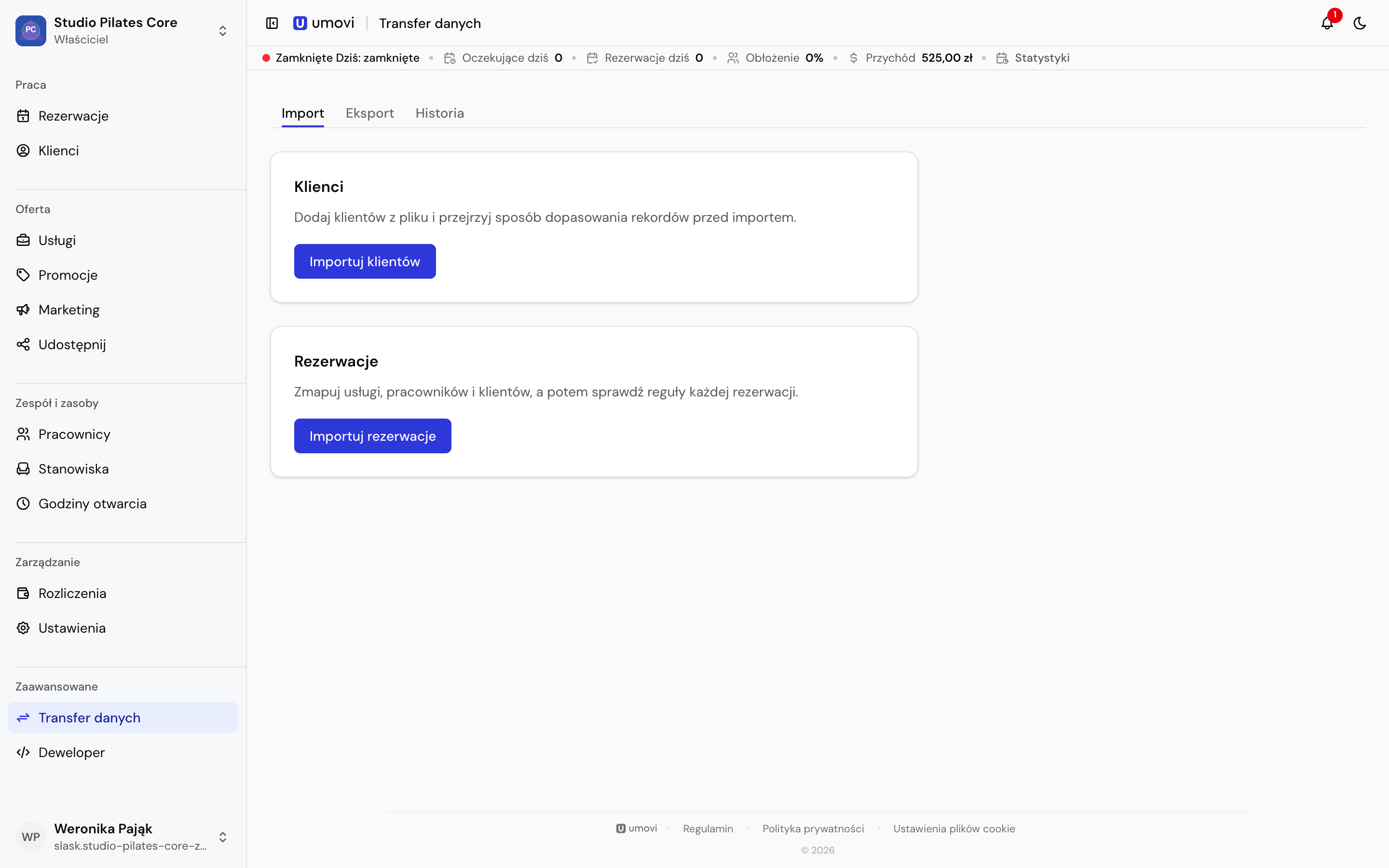
Import clients
- In Import, choose Import clients and upload the format requested by the wizard.
- Map file columns to client fields.
- Review matches to existing profiles and resolve ambiguous records.
- Run validation, fix errors and review the summary before saving.
- Check the result in History.
Import bookings
Choose Import bookings, map columns and match services, employees and clients. Services and employees must already exist; booking import does not create them. Add missing services and employees first.
Validation checks each row against the place's rules. Check dates, time zone, statuses and conflicts. Availability overrides enabled in settings are applied automatically during import. Review blocked and failed rows before retrying.
Export clients
In Export, choose clients and Prepare export. The task covers the place's client list. Processing runs in the background and large results are split into several CSV files. Download every part for a complete result.
Export bookings
Choose both dates; one export can cover up to 90 days. Use a preset if helpful and filter by status. No selected statuses means all statuses. Start the export and wait for Ready.
History and retries
History contains previous imports, exports and reports. A task can be queued, running, failed or expired. Check results before repeating an import because some records may already have been saved. If an export file expires, prepare a new one.