Promotions and marketing
Set discounts and prepare campaigns with audience, content and cost controls.
Promotions
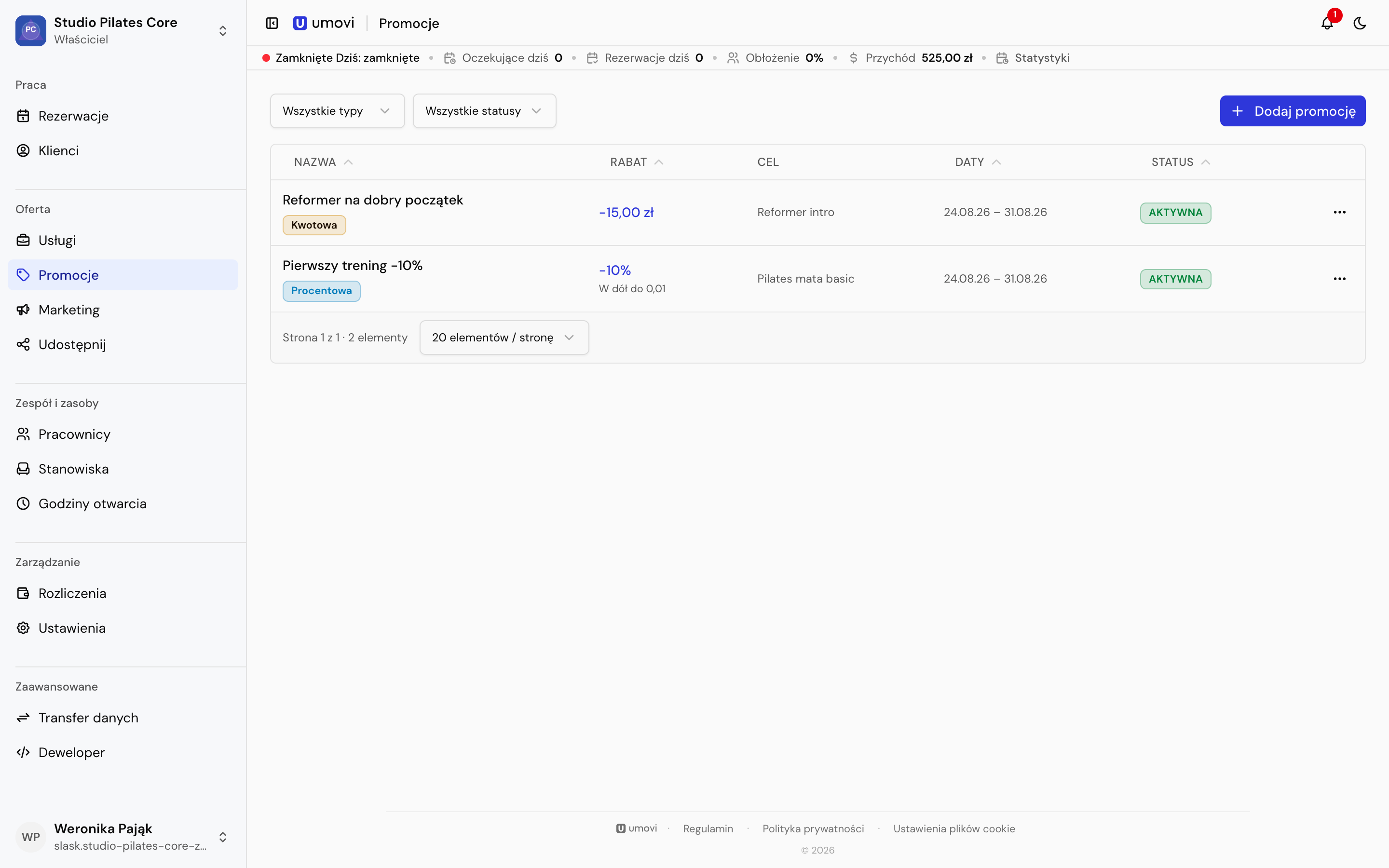
- Choose a Percentage or Fixed amount discount and enter the value.
- Select targets: percentage discounts can cover categories and services; fixed discounts cover services.
- Check price rounding for percentage discounts.
- Set optional start and end dates and active status.
- Review and confirm. High discounts require additional confirmation.
A fixed discount on a service takes precedence over percentage discounts. If several rules of the same type apply, the largest discount is used; discounts are not added together. The panel highlights overlapping promotions.
Discount parameters and targets cannot be changed after creation. Use Create copy to change them. Check prices before activation: an active promotion can affect the price history shown to clients. Excluding an incorrectly published price from history requires a reason and confirmations.
Marketing campaigns
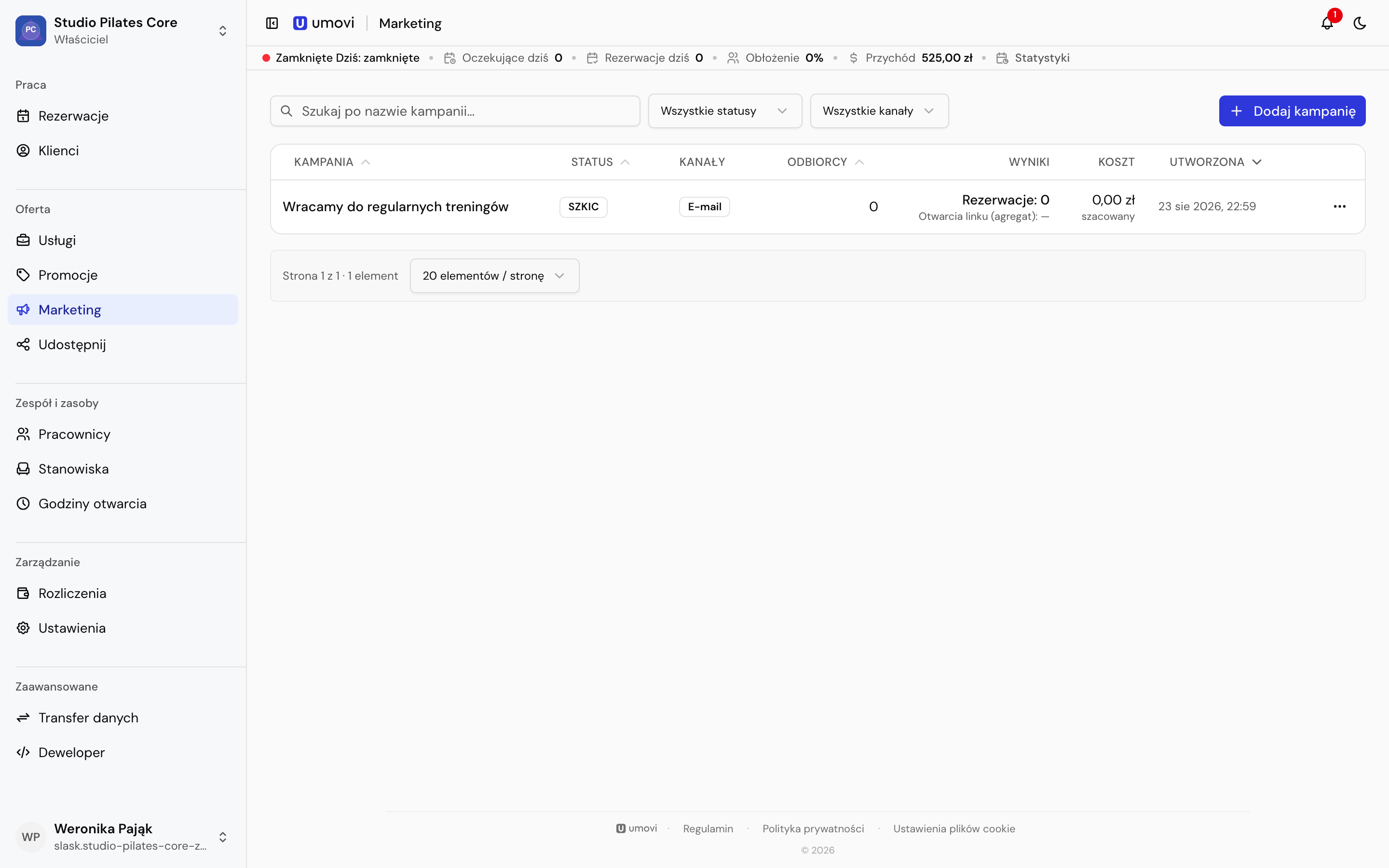
- Audience — build a segment using conditions, choosing whether all or any must match.
- Message — name the campaign, choose channels and prepare separate email, SMS or push content. Select the place or service that the link opens.
- Review content, recipient count and estimated cost. A longer SMS can use several billable segments.
- Set the sending time and available cost cap. Check recipients and every channel before final confirmation.
Access and results
Owners can access marketing; managers need assigned access. Sending new campaigns requires a plan with marketing enabled. Read-only mode retains history and lets you cancel a scheduled campaign.
Campaign details show sent, delivered, failed and cap-skipped messages, new bookings and final cost. Link opens (aggregate) counts opens, not unique people.