Create a booking in the app
Start from the calendar or list and find an available time.
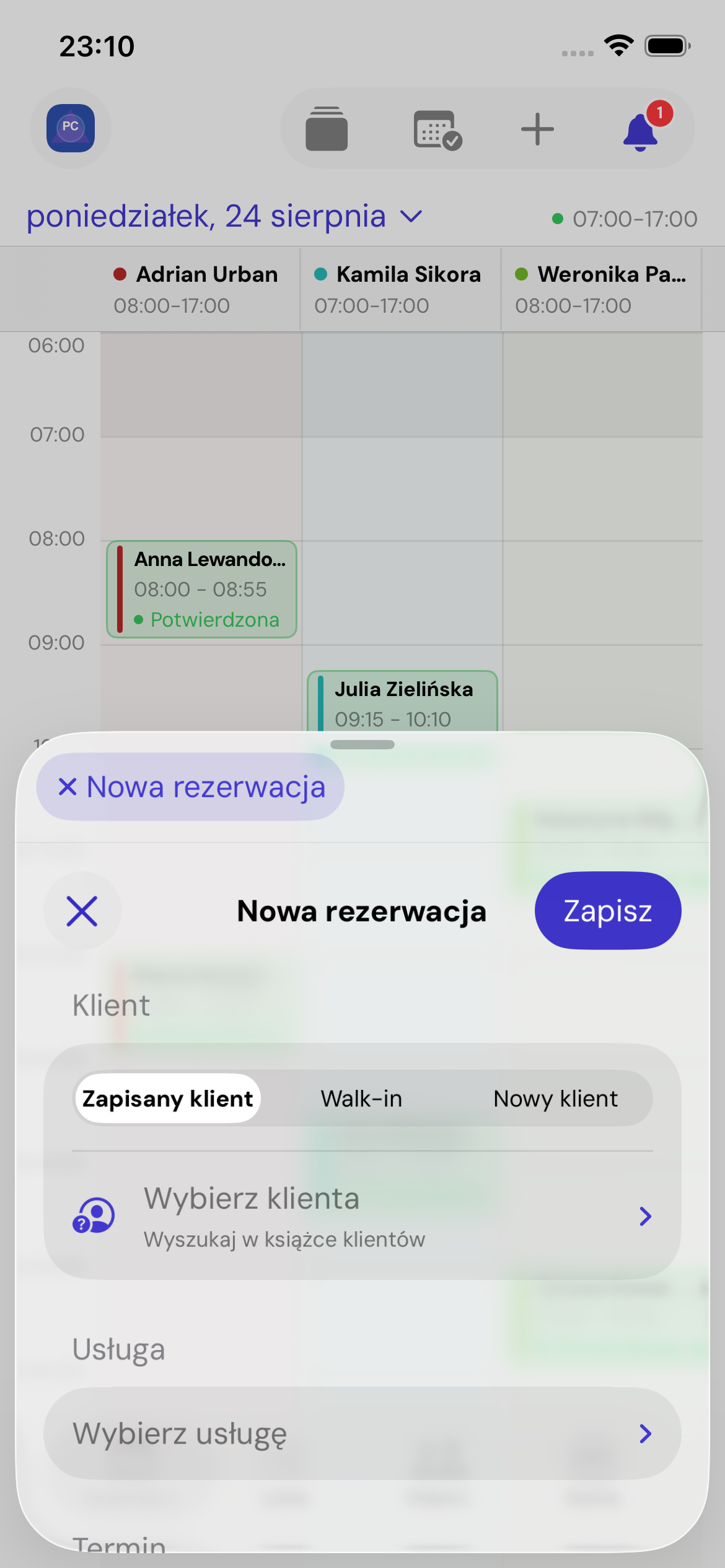
Client
Choose Saved client, Walk-in or New client. For a new client, enter at least an email address or phone number and confirm that their details may be used to manage bookings.
Service and employee
The catalogue shows categories and services assigned to the selected employee. Internal services are available for the team's manual bookings and labelled Team only.
Select an employee or Any available. Automatic assignment chooses a free employee who performs the service when you save.
Time
Set the start and duration, or use Find the next available time. Select an available day and time from the results. Check availability again if you change the service or employee.
Additional details
Set the price and Internal note, up to 2,000 characters. Only people with access to the booking can see this note; the client cannot. If the place allows it, you can also keep the time available for online bookings.
Conflicts
Conflicts may be overridable or blocking. Causes include an occupied employee, working hours, an exception, a closed place or unavailable workstation. For an allowed conflict, the app offers Save anyway.
Web equivalent: Create a booking in the web panel.